In Lato, you can add a flight to your trip using a PNR (Passenger Name Record) to automatically retrieve booking details and populate your itinerary. Instead of manually entering flight information, simply enter the booking reference and let the system import key details such as airline, departure and arrival times, and flight numbers. This guide explains how to use a PNR to quickly and accurately update your trip.
(Our product evolves quickly, and this video may not show the latest updates)
How to Use a PNR
Locate the PNR Information from the airline booking or confirmation email
This is not just a simple code, but a detailed set of flight segments and details provided by the airline
Go to "Trips" and select the trip you want to add the flight to
Open the "Itinerary" tab and go to "Flights"
Click on the "PNR" button
Paste the full PNR details into the field. Lato will extract and import the flights into your itinerary
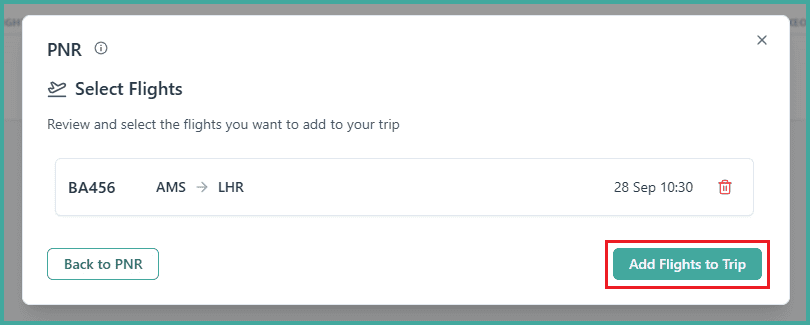
Click "Parse PNR" to validate the code, then select "Add flights to trip" to import the flights
Don't Have a PNR? No Problem!
If you don't have a PNR, don't worry, our AI falls back gracefully and parses your input, so you can add flights from almost any source.
Open your trip
Go to the Itinerary tab
Select the Flights menu
Click on PNR
Insert the flight data any way you want and click on "Parse PNR"
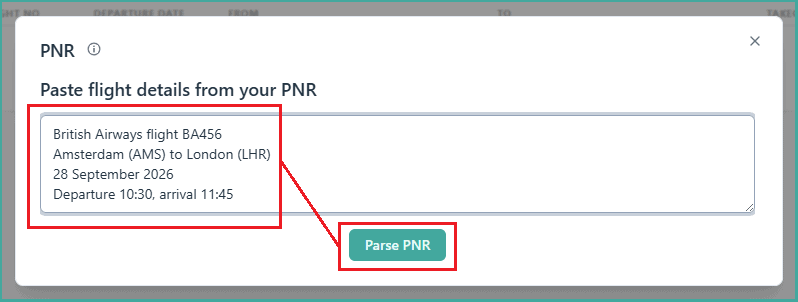
Our AI will now generate the flight PNR for you
Click on "Add flights to Trip" to add that flight to your trip