
In Lato, you can connect your RateHawk API key to access real-time hotel rates, availability, and inventory directly within your trip builder. This guide explains where to enter your RateHawk API credentials, how to verify your connection, and tips for troubleshooting common setup issues — so you can start sourcing live hotel pricing and availability right from your Lato dashboard.
Where to Find the RateHawk API key
1. Go to the RateHawk website and log in with your RateHawk credentials
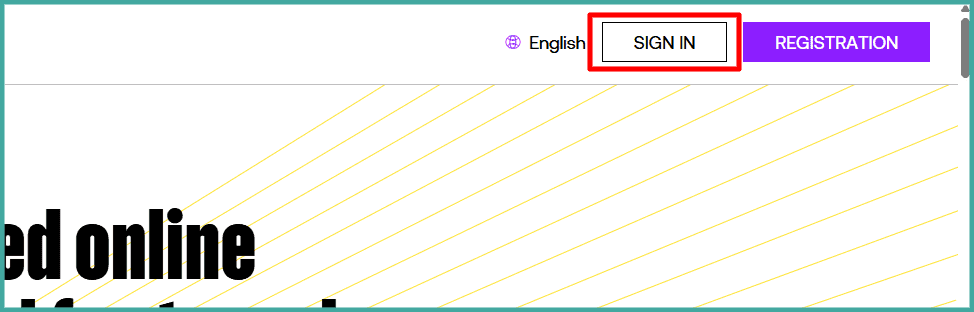
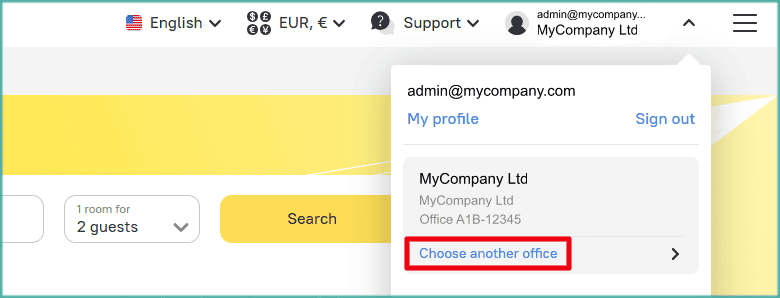
2. Click on your user profile in the top-right corner of the navigation menu

3. Select "Choose another office"
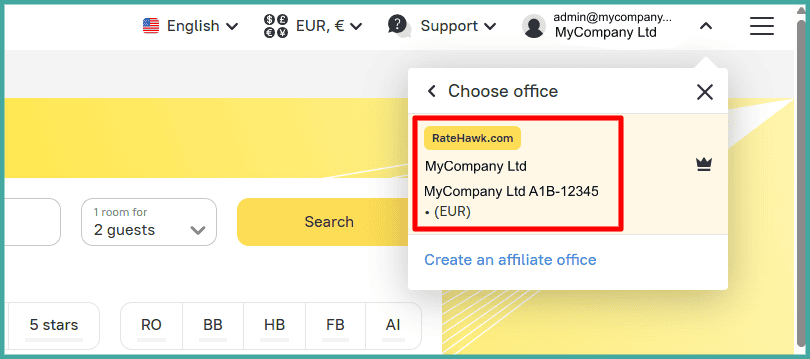
4. Choose the office corresponding to your company name + "API"
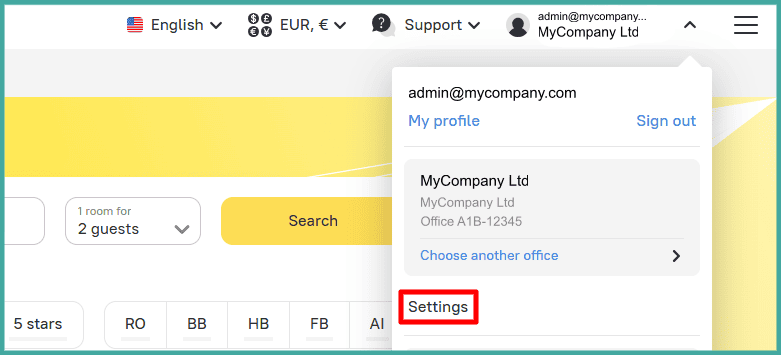
5. Click on your user profile in the navigation menu again

6. Select "Settings"
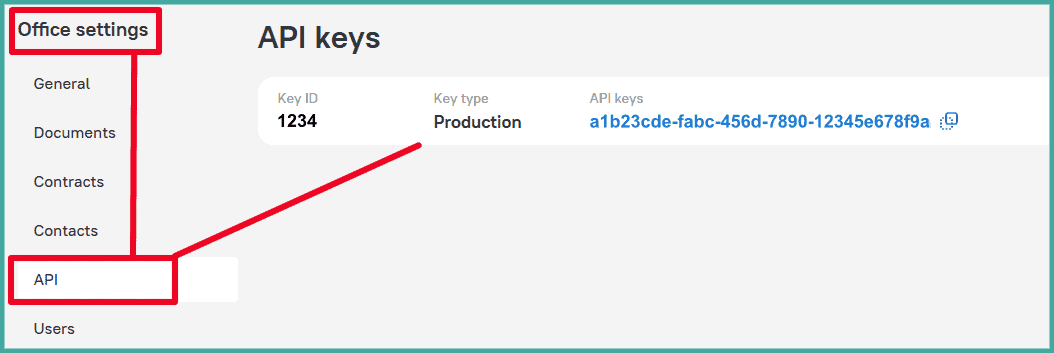
7. Click on "API" under Office Settings, and copy your Key ID and API Key
Configuring the RateHawk API Key in Lato
Go to the RateHawk settings in Lato
Add all the necessary information
Now you can make RateHawk bookings directly from Lato (at no extra cost than through the RateHawk platform!)