
In Lato, you can adjust the route on your itinerary map to customise how you travel between destinations. This includes dragging route segments, reordering stops, and refining navigation paths so the map reflects your intended journey flow. By editing your route directly on the map, you ensure more accurate travel plans and better clarity for travellers. This guide explains where to find the route tools and how to make adjustments step by step.
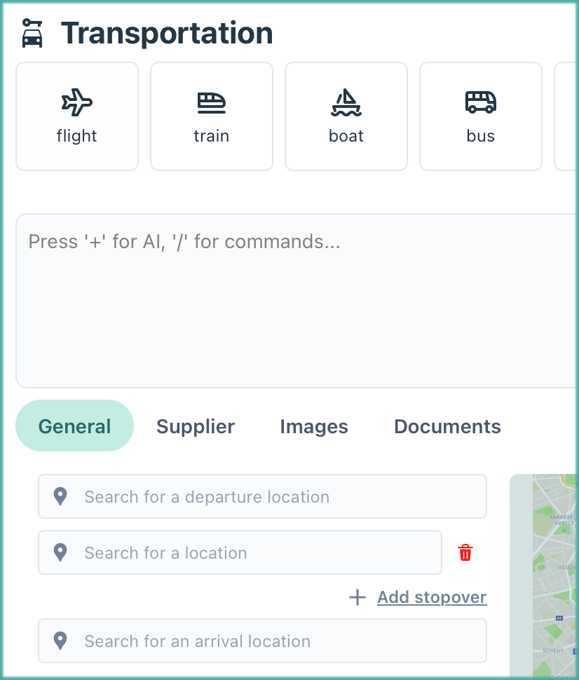
Adjust the Route on the Map
Go to your trip and open the "Itinerary" menu
Open the "Day by day" tab
Find the day with the Transportation you want to adjust
Select the transportation and navigate to the "General" tab
Add or remove stopovers according to your needs
Save the trip
Why Might Routes Look Wrong?
Outdated map data: Sometimes the map hasn't refreshed with the latest information about roads, construction, or new routes.
Location accuracy: The system might be using approximate locations instead of precise addresses.
Transportation mode: Different transport types (driving, walking, cycling) will show different routes.
Multiple stops: When you have several destinations, the route might not follow the order you expect.
Wrong elements order: The elements for that day have to be in the exact order they will occur, from top to bottom.
Quick Fixes to Try
1. Refresh the Map
Refresh your browser
This often resolves temporary display issues
2. Check Your Locations
Verify addresses
Add postcodes
Use landmarks
3. Adjust Transportation Settings
Switch between transport modes
Check if directions are enabled
4. Reorder Your Stops
Drag and drop
Add or remove stopovers
5. Reorder The Elements
Drag and drop elements into correct chronological order